jQuery pluginフォーム要素の制御
- Ajax Username Check - Using Jquery!〔入力したユーザー名が存在するかチェック(PHP+jQuery)〕
- autohelp〔フォーム要素クリックでヒントテキスト表示〕
- focus fields〔テキスト入力欄にフォーカスが当てられた時に目立たせる〕
- jQuery AlphaNumeric〔英数字の入力制限〕
- jQuery controlled Dependent (or Cascading) Select List 2〔Select要素から連動プルダウンを自動生成〕
- jQuery Impromptu〔ダイアログ、入力プロンプトのカスタマイズ〕
- jQuery MultiSelect〔複数選択型プルダウンを扱いやすくする〕
- jQuery plugin: Validation〔完璧なフォームの入力チェック〕
- jquery.combobox〔Select要素からコンボボックスを作成〕
- Maked Input Plugin〔指定したフォーマットで入力制御〕
- Select box manipulation〔プルダウンメニューの操作〕
- shiftcheckbox〔チェックボックスの範囲選択〕
- Simple chained combobox plugin for jQuery〔動的に連動プルダウンを生成(PHPを使用してJSON形式のデータを自動生成)〕
- TypeWatch〔入力したテキストをアラート表示〕
- テキスト入力欄にヘルプテキストを表示するjQueryプラグインいろいろ
- テキスト入力欄の入力文字数制限
- 入力に応じてテキストエリアを自動リサイズ
Ajax Username Check - Using Jquery!
入力したユーザー名が存在するかチェック(PHP+jQuery)
2009/3/14
Ajax Username Check - Using JQuery!
[PHP]check.php(ユーザー名存在確認)
[CSV]data.csv(ユーザーデータ)
jQueryとPHPを使用し、入力したユーザー名が存在するかを確認するjQueryプラグイン。
ユーザー名入力フォームにユーザー名を入力し、フォーカスが外れた時に、入力したユーザー名がないかPHP(check.php)で調べ、ユーザー名が存在するかの有無をjqueryを使用して動的に表示します。
phpnow coding ...
include/ajax/jquery_plugin_forminput/data.csv
phpnow coding ...
include/ajax/jquery_plugin_forminput/check.php
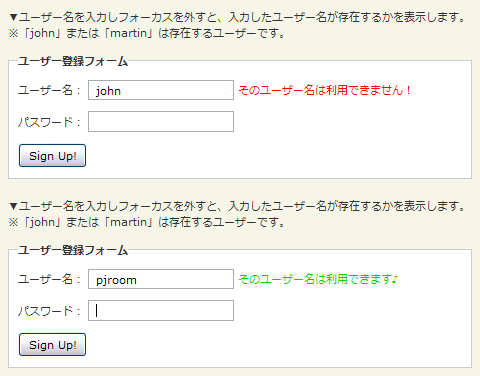 設置イメージ
<!DOCTYPE html PUBLIC "-//W3C//DTD XHTML 1.0 Transitional//EN" "http://www.w3.org/TR/xhtml1/DTD/xhtml1-transitional.dtd">
<html xmlns="http://www.w3.org/1999/xhtml" xml:lang="ja" lang="ja">
<head>
<meta http-equiv="Content-Type" content="text/html; charset=utf-8" />
<meta http-equiv="Content-Language" content="ja" />
<meta http-equiv="Content-Script-Type" content="text/javascript" />
<meta http-equiv="Content-Style-Type" content="text/css" />
<meta http-equiv="imagetoolbar" content="no" />
<title>Ajax Username Check - Using JQuery! | 設置サンプル</title>
<link rel="stylesheet" type="text/css" href="/content/lib/global.css" />
<!-- JS -->
<script src="https://ajax.googleapis.com/ajax/libs/jquery/1.3.2/jquery.min.js"></script>
<script type="text/javascript">
$(function() {
$('#usernameLoading').hide();
$('#username').blur(function(){
$('#usernameLoading').show();
$.post("include/ajax/jquery_plugin_forminput/check.php", {
username: $('#username').val()
}, function(response){
$('#usernameResult').fadeOut();
setTimeout("finishAjax('usernameResult', '"+escape(response)+"')", 400);
});
return false;
});
});
function finishAjax(id, response) {
$('#usernameLoading').hide();
$('#'+id).html(unescape(response));
$('#'+id).fadeIn();
}
</script>
<!-- CSS -->
<link rel="stylesheet" type="text/css" href="/content/lib/jquery/jquery.jqpuzzle.css" />
</head>
<body>
<div id="wrap">
<h1><a href='http://www.shawngo.com/gafyd/index.html'>Ajax Username Check - Using JQuery!</a> | 設置サンプル</h1>
<p>▼ユーザー名を入力しフォーカスを外すと、入力したユーザー名が存在するかを表示します。<br>※「john」または「martin」は存在するユーザーです。</p>
<!-- CODE -->
<fieldset>
<legend>ユーザー登録フォーム</legend>
<form action="#" method="post" onsubmit="return false;">
<p>
<label for="username">ユーザー名:</label> <input type="text" name="username" id="username" />
<span id="usernameLoading"><img src="/content/img/loading.gif" alt="Ajax Indicator" /></span>
<span id="usernameResult"></span>
</p>
<p><label for="password">パスワード:</label> <input type="password" name="password" id="password"/></p>
<p><input type="submit" name="submit" value="Sign Up!" /></p>
</form>
</fieldset>
<!-- / CODE -->
</div>
</body>
</html>
autohelp
フォーム要素クリックでヒントテキスト表示
2009/2/11
autohelp
フォーム要素をクリックすると、その要素のタイトル属性に指定した内容をヘルプテキストとして表示するjQueryプラグイン。
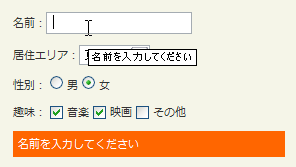 設置イメージ
<!DOCTYPE html PUBLIC "-//W3C//DTD XHTML 1.0 Transitional//EN" "http://www.w3.org/TR/xhtml1/DTD/xhtml1-transitional.dtd">
<html xmlns="http://www.w3.org/1999/xhtml" xml:lang="ja" lang="ja">
<head>
<meta http-equiv="Content-Type" content="text/html; charset=utf-8" />
<meta http-equiv="Content-Language" content="ja" />
<meta http-equiv="Content-Script-Type" content="text/javascript" />
<meta http-equiv="Content-Style-Type" content="text/css" />
<meta http-equiv="imagetoolbar" content="no" />
<title>jQuery plugin: autohelp| 設置サンプル</title>
<link rel="stylesheet" href="/content/lib/global.css" type="text/css" />
<!-- JS -->
<script src="https://ajax.googleapis.com/ajax/libs/jquery/1.2.6/jquery.min.js"></script>
<script type="text/javascript" src="/content/lib/jquery/jquery.autohelp.js"></script>
<script type="text/javascript">
$(function() {
$("form *").autohelp("#autohelp");
$("#autohelp").css({"background":"#ff6600","color":"#fff", "padding":"5px"});
});
</script>
</head>
<body>
<div id="wrap">
<h1><a href='http://www.dyve.net/jquery/?autohelp'>autohelp</a> | 設置サンプル</h1>
<!-- CODE -->
<form action="#">
<p><label for="name">名前:</label><input type="text" name="name" id="name" title="名前を入力してください" /></p>
<p title="居住エリアを選択してください"><label for="addr">居住エリア:</label><select name="addr" id="addr"><option>東京都</option><option>大阪府</option><option>その他</option></select></p>
<p title="1つだけ選択してください">
<label for="sex_1">性別:</label>
<label for="sex_1"><input type="radio" name="sex" id="sex_1" value="male"> 男</label>
<label for="sex_2"><input type="radio" name="sex" id="sex_2" value="female"> 女</label>
</p>
<p title="1つあるいは複数選択してください">
<label for="hobies_1">趣味:
<label for="hobies_1"><input type="checkbox" name="hobies_1" id="hobies_1" value="music"> 音楽</label>
<label for="hobies_2"><input type="checkbox" name="hobies_2" id="hobies_2" value="movie"> 映画</label>
<label for="hobies_3"><input type="checkbox" name="hobies_3" id="hobies_3" value="other"> その他</label>
</p>
</form>
<p id="autohelp">フォーム要素をクリックすると、ここにヒントテキストが表示されます。</p>
<!-- / CODE -->
</div>
</body>
</html>
focus fields
テキスト入力欄にフォーカスが当てられた時に目立たせる
unknown
focus fields
テキスト入力欄にフォーカスが当てられた時に、テキスト入力欄の文字色、背景色、枠線色、枠線の太さにCSSでスタイリングして目立たせるjQueryプラグイン。
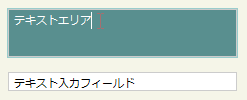 設置イメージ
<!DOCTYPE html PUBLIC "-//W3C//DTD XHTML 1.0 Transitional//EN" "http://www.w3.org/TR/xhtml1/DTD/xhtml1-transitional.dtd">
<html xmlns="http://www.w3.org/1999/xhtml" xml:lang="ja" lang="ja">
<head>
<meta http-equiv="Content-Type" content="text/html; charset=utf-8" />
<meta http-equiv="Content-Language" content="ja" />
<meta http-equiv="Content-Script-Type" content="text/javascript" />
<meta http-equiv="Content-Style-Type" content="text/css" />
<meta http-equiv="imagetoolbar" content="no" />
<title>focus fields| 設置サンプル</title>
<link rel="stylesheet" type="text/css" href="/content/lib/global.css" />
<!-- JS -->
<script src="https://ajax.googleapis.com/ajax/libs/jquery/1.3.2/jquery.min.js"></script>
<script type="text/javascript" src="/content/lib/jquery/jquery.focusfields.js"></script>
<script type="text/javascript">
$(function(){
$("#exp1 input, #exp1 textarea").focusFields();
$("#exp2 input, #exp2 textarea").focusFields("#f0f");
$("#exp3 input, #exp3 textarea").focusFields(null, 6)
$("#exp4 input, #exp4 textarea").focusFields(null, null, "#598f8f", "#fff")
});
</script>
<!-- CSS -->
<style type="text/css">
textarea, input { border:1px solid #ccc; background:#fff; width:20em; }
</style>
</head>
<body>
<div id="wrap">
<h1><a href='http://www.texotela.co.uk/code/jquery/focusfields/'>focus fields</a> | 設置サンプル</h1>
<p>▼入力欄にフォーカスを当てると、クリックした入力欄がハイライト表示されます。</p>
<!-- CODE -->
<form action="#">
<h2>例1:デフォルト</h2>
<pre>$("#exp1 input, #exp1 textarea").focusFields();</pre>
<div id="exp1">
<p><textarea>テキストエリア</textarea></p>
<p><input type="txt" value="テキスト入力フィールド" /></p>
</div>
<h2>例2:枠線色を「#f0f」にする</h2>
<pre>$("#exp1 input, #exp1 textarea").focusFields("#f0f");</pre>
<div id="exp2">
<p><textarea>テキストエリア</textarea></p>
<p><input type="txt" value="テキスト入力フィールド" /></p>
</div>
<h2>例3:枠線の太さを6pxにする</h2>
<pre>$("#exp2 input, #exp2 textarea").focusFields(null, 6)</pre>
<div id="exp3">
<p><textarea>テキストエリア</textarea></p>
<p><input type="txt" value="テキスト入力フィールド" /></p>
</div>
<h2>例4:背景色を「#598f8f」にし、文字色を「#fff」にする</h2>
<pre>$("#exp3 input, #exp3 textarea").focusFields(null, null, "#598f8f", "#fff")</pre>
<div id="exp4">
<p><textarea>テキストエリア</textarea></p>
<p><input type="txt" value="テキスト入力フィールド" /></p>
</div>
</form>
<!-- / CODE -->
</div>
</body>
</html>
jQuery AlphaNumeric
英数字の入力制限
2009/3/25
jQuery AlphaNumeric
ユーザーがテキストボックスまたはテキストエリアに入力できる文字を制限するjQueryプラグイン。
いくつかのAPI関数とAPIプロパティが用意されており、これらを使用することで、簡単に、指定した文字だけを入力できるようにしたり、逆に指定した文字だけを入力できないようにすることができます。 日本語には対応していません。
| API関数 | 説明 | APIプロパティ | 説明 |
|---|---|---|---|
| alphanumeric | アルファベットと数値の両方を許可 | allow | 指定した文字のみ許可 |
| alpha | アルファベットのみ許可 | ichars | 指定した文字以外を許可 |
| numeric | 数値のみ許可 | allcaps | 大文字のみ許可 |
| nocaps | 小文字のみ許可 |
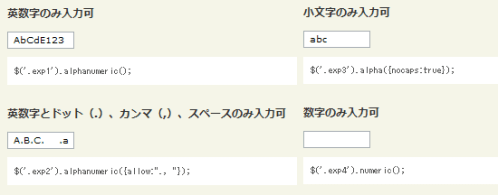 設置イメージ
<!DOCTYPE html PUBLIC "-//W3C//DTD XHTML 1.0 Transitional//EN" "http://www.w3.org/TR/xhtml1/DTD/xhtml1-transitional.dtd">
<html xmlns="http://www.w3.org/1999/xhtml" xml:lang="ja" lang="ja">
<head>
<meta http-equiv="Content-Type" content="text/html; charset=utf-8" />
<meta http-equiv="Content-Language" content="ja" />
<meta http-equiv="Content-Script-Type" content="text/javascript" />
<meta http-equiv="Content-Style-Type" content="text/css" />
<meta http-equiv="imagetoolbar" content="no" />
<title>jQuery AlphaNumeric| 設置サンプル</title>
<link rel="stylesheet" type="text/css" href="/content/lib/global.css" />
<!-- JS -->
<script src="https://ajax.googleapis.com/ajax/libs/jquery/1.3.2/jquery.min.js"></script>
<script type="text/javascript" src="/content/lib/jquery/jquery.alphanumeric.js"></script>
<script type="text/javascript">
$(function(){
$('.exp1').alphanumeric();
$('.exp2').alphanumeric({allow:"., "});
$('.exp3').alpha({nocaps:true});
$('.exp4').numeric();
$('.exp5').numeric({allow:"."});
$('.exp6').alphanumeric({ichars:'.1a'});
});
</script>
</head>
<body>
<div id="wrap">
<h1><a href='http://itgroup.com.ph/alphanumeric/'>jQuery AlphaNumeric</a> | 設置サンプル</h1>
<!-- CODE -->
<h2>英数字のみ入力可</h2>
<input type="text" class="exp1 tb" size="10" />
<pre>$('.exp1').alphanumeric();</pre>
<h2>英数字とドット(.)、カンマ(,)、スペースのみ入力可</h2>
<input type="text" class="exp2 tb" size="10" />
<pre>$('.exp2').alphanumeric({allow:"., "});</pre>
<h2>小文字のみ入力可</h2>
<input type="text" class="exp3 tb" size="10" />
<pre>$('.exp3').alpha({nocaps:true});</pre>
<h2>数字のみ入力可</h2>
<input type="text" class="exp4 tb" size="10" />
<pre>$('.exp4').numeric();</pre>
<h2>数字とドット(.)のみ入力可</h2>
<input type="text" class="exp5 tb" size="10" />
<pre>$('.exp5').numeric({allow:"."});</pre>
<h2>ドット(.)、「1」、「a」以外入力可</h2>
<input type="text" class="exp6 tb" size="10" />
<pre>$('.exp6').alphanumeric({ichars:'.1a'});</pre>
<!-- / CODE -->
</div>
</body>
</html>
jQuery controlled Dependent (or Cascading) Select List 2
Select要素から連動プルダウンを自動生成
2009/3/14
jQuery controlled Dependent (or Cascading) Select List 2
jQueryを使用して、Select要素から連動プルダウンを自動生成するjQueryプラグイン。
プルダウンの選択を変更すると、クラス名によって関連付けられた連動プルダウンを生成します。
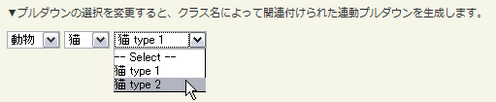 設置イメージ
<!DOCTYPE html PUBLIC "-//W3C//DTD XHTML 1.0 Transitional//EN" "http://www.w3.org/TR/xhtml1/DTD/xhtml1-transitional.dtd">
<html xmlns="http://www.w3.org/1999/xhtml" xml:lang="ja" lang="ja">
<head>
<meta http-equiv="Content-Type" content="text/html; charset=utf-8" />
<meta http-equiv="Content-Language" content="ja" />
<meta http-equiv="Content-Script-Type" content="text/javascript" />
<meta http-equiv="Content-Style-Type" content="text/css" />
<meta http-equiv="imagetoolbar" content="no" />
<title>jQuery controlled Dependent (or Cascading) Select List 2 | 設置サンプル</title>
<link rel="stylesheet" href="/content/lib/global.css" type="text/css" />
<!-- JS -->
<script src="https://ajax.googleapis.com/ajax/libs/jquery/1.2.6/jquery.min.js"></script>
<script type="text/javascript">
function makeSublist(parent,child,isSubselectOptional,childVal){
$("body").append("<select style='display:none' id='"+parent+child+"'></select>");
$('#'+parent+child).html($("#"+child+" option"));
var parentValue = $('#'+parent).attr('value');
$('#'+child).html($("#"+parent+child+" .sub_"+parentValue).clone());
childVal = (typeof childVal == "undefined")? "" : childVal ;
$("#"+child+' option[@value="'+ childVal +'"]').attr('selected','selected');
$('#'+parent).change(
function(){
var parentValue = $('#'+parent).attr('value');
$('#'+child).html($("#"+parent+child+" .sub_"+parentValue).clone());
if(isSubselectOptional) $('#'+child).prepend("<option value='none'> -- Select -- </option>");
$('#'+child).trigger("change");
$('#'+child).focus();
}
);
}
$(function(){
makeSublist('child','grandsun', true, '');
makeSublist('parent','child', false, '1');
});
</script>
</head>
<body>
<div id="wrap">
<h1><a href='http://www.ajaxray.com/blog/2007/11/08/jquery-controlled-dependent-or-cascading-select-list-2/'>jQuery controlled Dependent (or Cascading) Select List 2</a> | 設置サンプル</h1>
<p>▼プルダウンの選択を変更すると、クラス名によって関連付けられた連動プルダウンを生成します。</p>
<!-- CODE -->
<form action="#">
<select id="parent">
<option value="1">花</option>
<option value="2">動物</option>
</select>
<select id="child">
<option class="sub_1" value="1">バラ</option>
<option class="sub_1" value="2">ひまわり</option>
<option class="sub_1" value="3">チューリップ</option>
<option class="sub_2" value="4">牛</option>
<option class="sub_2" value="5">犬</option>
<option class="sub_2" value="6">猫</option>
<option class="sub_2" value="7">トラ</option>
</select>
<select id="grandsun">
<option class="sub_1" value="1">バラ type 1</option>
<option class="sub_1" value="2">バラ type 2</option>
<option class="sub_1" value="3">バラ type 3</option>
<option class="sub_2" value="1">ひまわり type 1</option>
<option class="sub_2" value="2">ひまわり type 2</option>
<option class="sub_3" value="1">チューリップ type 1</option>
<option class="sub_3" value="2">チューリップ type 2</option>
<option class="sub_4" value="1">牛 type 1</option>
<option class="sub_4" value="2">牛 type 2</option>
<option class="sub_4" value="3">牛 type 3</option>
<option class="sub_5" value="1">犬 type 1</option>
<option class="sub_5" value="2">犬 type 2</option>
<option class="sub_5" value="3">犬 type 3</option>
<option class="sub_5" value="4">犬 type 4</option>
<option class="sub_6" value="1">猫 type 1</option>
<option class="sub_6" value="2">猫 type 2</option>
<option class="sub_7" value="1">トラ type 1</option>
<option class="sub_7" value="2">トラ type 2</option>
<option class="sub_7" value="3">トラ type 3</option>
</select>
</form>
<!-- / CODE -->
</div>
</body>
</html>
jQuery Impromptu
ダイアログ、入力プロンプトのカスタマイズ
2009/5/17
jQuery Impromptu
警告、入力プロンプト、確認ダイアログをカスタマイズできるjQueryプラグイン。 ダイアログに表示するボタンの種類やオーバーレイの透明度などをカスタマイズすることができます。
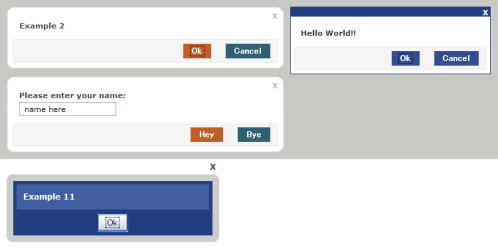 設置イメージ
<!DOCTYPE html PUBLIC "-//W3C//DTD XHTML 1.0 Transitional//EN" "http://www.w3.org/TR/xhtml1/DTD/xhtml1-transitional.dtd">
<html xmlns="http://www.w3.org/1999/xhtml" xml:lang="ja" lang="ja">
<head>
<meta http-equiv="Content-Type" content="text/html; charset=utf-8" />
<meta http-equiv="Content-Language" content="ja" />
<meta http-equiv="Content-Script-Type" content="text/javascript" />
<meta http-equiv="Content-Style-Type" content="text/css" />
<meta http-equiv="imagetoolbar" content="no" />
<title>jQuery Impromptu | 設置サンプル</title>
<link rel="stylesheet" type="text/css" href="/content/lib/global.css" />
<!-- JS -->
<script src="https://ajax.googleapis.com/ajax/libs/jquery/1.3.2/jquery.min.js"></script>
<script type="text/javascript" src="/content/lib/jquery/jquery-impromptu.2.5.js"></script>
<script type="text/javascript" src="/content/lib/jquery/jquery.corner.js"></script>
<!-- CSS -->
<style type="text/css">
.jqifade { position:absolute; background-color:#aaa; }
div.jqi { width:400px; position:absolute; background-color:#fff; font-size:11px; text-align:left; border:solid 1px #eee; -moz-border-radius:10px; -webkit-border-radius:10px; padding:7px; }
div.jqi .jqicontainer { font-weight:bold; }
div.jqi .jqiclose { position:absolute; top:4px; right:-2px; width:18px; cursor:default; color:#bbb; font-weight:bold; }
div.jqi .jqimessage { padding:10px; line-height:20px; color:#444; }
div.jqi .jqibuttons { text-align:right; padding:5px 0; border:solid 1px #eee; background-color:#f4f4f4; }
div.jqi button { padding:3px 10px; margin:0 10px; background-color:#2f6073; border:solid 1px #f4f4f4; color:#fff; font-weight:bold; font-size:12px; }
div.jqi button:hover { background-color:#728a8c; }
div.jqi button.jqidefaultbutton { background-color:#bf5e26; }
.jqiwarning .jqi .jqibuttons { background-color:#bf5e26; }
</style>
</head>
<body>
<div id="wrap">
<h1><a href='http://www.trentrichardson.com/Impromptu/index.php'>jQuery Impromptu</a> | 設置サンプル</h1>
<p>▼ダイアログ、入力プロンプト、確認ダイアログをカスタマイズできるjQueryプラグイン。</p>
<!-- CODE -->
<h2>ダイアログ(【OK】ボタンのみ)</h2>
<div class="exlink">
<button onclick="$.prompt('Example 1')" title="Example 1">Example 1</button>
</div>
<pre>$.prompt('Example 1');</pre>
<h2>ダイアログ(【OK】ボタン+【Cancel】ボタン)</h2>
<div class="exlink">
<button onclick="$.prompt('Example 2',{ buttons: { Ok: true, Cancel: false } })" title="Example 2">Example 2</button>
</div>
<pre>$.prompt('Example 2',{ buttons: { Ok: true, Cancel: false } });</pre>
<h2>オーバーレイの透明度を指定</h2>
<div class="exlink">
<button onclick="$.prompt('Example 3',{ opacity: 0.9 })" title="Example 3">Example 3</button>
</div>
<pre>$.prompt('Example 3',{ opacity: 0.9 });</pre>
<h2>デフォルトでフォーカスを当てるボタンを指定</h2>
<div class="exlink">
<button onclick="$.prompt('Example 4',{ buttons: { Ok: true, Cancel: false }, focus: 1 })" title="Example 4">Example 4</button>
</div>
<pre>$.prompt('Example 4',{ buttons: { Ok: true, Cancel: false }, focus: 1 });</pre>
<h2>CSS名で使用するプレフィックスを変更</h2>
<div class="exlink">
<button onclick="$.prompt('Example 5',{ prefix: 'impromptu' })" title="Example 5">Example 5</button>
</div>
<pre>$.prompt('Example 5',{ prefix: 'impromptu' });</pre>
<style type="text/css">
/* impromptu */
.impromptuwarning .impromptu{ background-color:#aaa; }
.impromptufade { position:absolute; background-color:#fff; }
div.impromptu{ position:absolute; background-color:#ccc; padding:10px; width:300px; text-align:left; }
div.impromptu .impromptuclose { float:right; margin:-35px -10px 0 0; cursor:pointer; color:#213e80; }
div.impromptu .impromptucontainer { background-color:#213e80; padding:5px; color:#fff; font-weight:bold; }
div.impromptu .impromptumessage { background-color:#415ea0; padding:10px; }
div.impromptu .impromptubuttons { text-align:center; padding:5px 0 0 0; }
div.impromptu button { padding:3px 10px 3px 10px; margin:0 10px; }
</style>
<h2>プロンプト表示する時のエフェクトを変更</h2>
<div class="exlink">
<button onclick="$.prompt('Example 6',{ show:'slideDown' })" title="Example 6">Example 6</button>
</div>
<pre>$.prompt('Example 6',{ show:'slideDown' });</pre>
<h2>jQueryでエフェクトをカスタマイズ</h2>
<div class="exlink">
<button onclick="$.prompt('Example 7',{ show:'myanimation' })" title="Example 7">Example 7</button>
</div>
<pre>jQuery.fn.extend({
myanimation: function(speed){
var t = $(this);
if(t.css("display") == "none") t.show(speed,function(){ t.hide(speed,function(){ t.show(speed); }); });
else t.hide(speed,function(){ t.show(speed,function(){ t.hide(speed); }); });
}
});
$.prompt('Example 7',{ show:'myanimation' });</pre>
<script type="text/javascript">
jQuery.fn.extend({
myanimation: function(speed){
var t = $(this);
if(t.css("display") == "none") t.show(speed,function(){ t.hide(speed,function(){ t.show(speed); }); });
else t.hide(speed,function(){ t.show(speed,function(){ t.hide(speed); }); });
}
});
</script>
<h2>コールバック関数を追加</h2>
<div class="exlink">
<button onclick="$.prompt('Example 8',{ callback: mycallbackfunc });" title="Example 8">Example 8</button>
</div>
<pre>function mycallbackfunc(v,m,f){
$.prompt('i clicked ' + v);
}
$.prompt('Example 8',{ callback: mycallbackfunc });</pre>
<script type="text/javascript">
function mycallbackfunc(v,m,f){
$.prompt('i clicked ' + v);
}
</script>
<h2>入力プロンプト(3の引数を持つコールバック関数)</h2>
<div class="exlink">
<button onclick="$.prompt(txt,{ callback: mycallbackform, buttons: { Hey: 'Hello', Bye: 'Good Bye' } })" title="Example 9">Example 9</button>
</div>
<pre>var txt = 'Please enter your name:<br />
<input type="text" id="alertName"
name="alertName" value="name here" />';
function mycallbackform(v,m,f){
$.prompt(v +' ' + f.alertName);
}
$.prompt(txt,{
callback: mycallbackform,
buttons: { Hey: 'Hello', Bye: 'Good Bye' }
});</pre>
<script type="text/javascript">
var txt = 'Please enter your name:<br><input type="text" id="alertName" name="alertName" value="name here" />';
var txt2 = 'Try submitting an empty field:<br><input type="text" id="alertName" name="alertName" value="" />';
function mycallbackform(v,m,f){
$.prompt(v +' ' + f.alertName);
}
</script>
<h2>入力プロンプト(入力チェック)</h2>
<div class="exlink">
<button onclick="$.prompt(txt2,{ submit: mysubmitfunc, buttons: { Ok:true } })" title="Example 10">Example 10</button>
</div>
<pre>var txt = 'Try submitting an empty field:<br />
<input type="text" id="alertName"
name="myname" value="" />';
function mysubmitfunc(v,m,f){
an = m.children('#alertName');
if(f.alertName == ""){
an.css("border","solid #ff0000 1px");
return false;
}
return true;
}
$.prompt(txt,{
submit: mysubmitfunc,
buttons: { Ok:true }
});</pre>
<script type="text/javascript">
function mysubmitfunc(v,m,f){
an = m.children('#alertName');
if(f.alertName == ""){
an.css("border","solid #ff0000 1px");
return false;
}
return true;
}
</script>
<h2>角丸(<a href="http://methvin.com/jquery/jq-corner.html" title="jQuery Corner Plugin">jQuery Corner Plugin</a>使用)</h2>
<div class="exlink">
<button onclick="$.prompt('Example 11',{prefix:'impromptu'}).children('#impromptu').corner()" title="Example 11">Example 11</button>
</div>
<pre>$.prompt('Example 11',{prefix:'impromptu'}).children('#impromptu').corner();</pre>
<h2>入力プロンプト(ボタンのカスタマイズ)</h2>
<div class="exlink">
<button onclick="$.prompt('Example 12<p>Save these settings?</p>',{ buttons:{ Apply:1,Maybe:2,Never:3 },prefix:'colsJqi'}).children('#colsJqi').corner()" title="Example 12">Example 12</button>
</div>
<pre>$.prompt('Example 12<p>Save these settings?</p>',{
buttons:{ Apply:1,Maybe:2,Never:3 },<br>
prefix:'colsJqi',
}).children('#colsJqi').corner();</pre>
<style type="text/css">
/* columns ex */
.colsJqifadewarning .colsJqi{ background-color:#b0be96;}
.colsJqifade { position:absolute; background-color:#fff; }
div.colsJqi { position:absolute; background-color:#d0dEb6; padding:10px; width:400px; text-align:left; }
div.colsJqi .colsJqiclose { float:right; margin:-35px -10px 0 0; cursor:pointer; color:#bbb; }
div.colsJqi .colsJqicontainer { background-color:#e0eEc6; padding:5px; color:#fff; font-weight:bold; height:160px; }
div.colsJqi .colsJqimessage { background-color:#c0cEa6; padding:10px; width:280px; height:140px; float:left; }
div.colsJqi .jqibuttons { text-align:center; padding:5px 0 0 0; }
div.colsJqi button { background:url(/content/img/ajax/jquery_impromptu/button_bg.jpg) top left repeat-x #fff; border:solid #777 1px; font-size:12px; padding:3px 10px 3px 10px; margin:5px 5px 5px 10px; width:75px; }
div.colsJqi button:hover { border:solid #aaa 1px; }
</style>
<h2>テーマ:ブラウザ</h2>
<div class="exlink">
<button onclick="$.prompt(brown_theme_text,{buttons:{Ok:true,Cancel:false}, prefix:'brownJqi'})" title="Example 13">Example 13</button>
</div>
<pre>var brown_theme_text = '<h3>Example 13</h3>'+
'<p>Save these settings?</p>'+
'<img src="images/help.gif" alt="help" '+
'class="helpImg" />';
$.prompt(brown_theme_text,{
buttons:{Ok:true,Cancel:false},
prefix:'brownJqi'
});</pre>
<script type="text/javascript">
var brown_theme_text = '<h3>Example 13</h3><p>Save these settings?</p><img src="/content/img/jquery_impromptu/help.gif" alt="help" class="helpImg" />';
</script>
<style type="text/css">
/*
------------------------------
brown theme
------------------------------
*/
.brownJqiwarning .brownJqi { background-color:#ccc; }
.brownJqifade { position:absolute; background-color:#fff; }
div.brownJqi { position:absolute; background-color:transparent; padding:10px; width:300px; text-align:left; }
div.brownJqi .brownJqiclose { float:right; margin:-20px 0 0 0; cursor:pointer; color:#777; font-size:11px; }
div.brownJqi .brownJqicontainer { position:relative; background-color:transparent; border:solid 1px #5F5D5A; color:#fff; font-weight:bold; }
div.brownJqi .brownJqimessage { position:relative; background-color:#F7F6F2; border-top:solid 1px #C6B8AE; border-bottom:solid 1px #C6B8AE; }
div.brownJqi .brownJqimessage h3 { background:url(/content/img/ajax/jquery_impromptu/brown_theme_gradient.jpg) top left repeat-x #fff; margin:0; padding:7px 0 7px 15px; color:#4D4A47; }
div.brownJqi .brownJqimessage p { padding:10px; color:#777; }
div.brownJqi .brownJqimessage img.helpImg { position:absolute; bottom:-25px; left:10px; }
div.brownJqi .brownJqibuttons { text-align:right; }
div.brownJqi button { background:url(/content/img/ajax/jquery_impromptu/brown_theme_gradient.jpg) top left repeat-x #fff; border:solid #777 1px; font-size:12px; padding:3px 10px 3px 10px; margin:5px 5px 5px 10px; }
div.brownJqi button:hover { border:solid #aaa 1px; }
</style>
<h2>テーマ:ブルー1</h2>
<div class="exlink">
<button onclick="$.prompt('Hello World!!',{buttons:{Ok:true,Cancel:false}, prefix:'cleanblue'})" title="Example 14">Example 14</button>
</div>
<pre>$.prompt('Hello World!!',{
buttons:{Ok:true,Cancel:false},
prefix:'cleanblue'
});</pre>
<style type="text/css">
/*
*------------------------
* clean blue ex
*------------------------
*/
.cleanbluewarning .cleanblue{ background-color:#acb4c4; }
.cleanbluefade{ position:absolute; background-color:#aaa; }
div.cleanblue{ font-family:Verdana, Geneva, Arial, Helvetica, sans-serif; position:absolute; background-color:#fff; width:300px; font-size:11px; text-align:left; border:solid 1px #213e80; }
div.cleanblue .cleanbluecontainer{ background-color:#fff; border-top:solid 14px #213e80; padding:5px; font-weight:bold; }
div.cleanblue .cleanblueclose{ float:right; width:18px; cursor:default; margin:-19px -12px 0 0; color:#fff; font-weight:bold; }
div.cleanblue .cleanbluemessage{ padding:10px; line-height:20px; font-size:11px; color:#333333; }
div.cleanblue .cleanbluebuttons{ text-align:right; padding:5px 0 5px 0; border:solid 1px #eeeeee; background-color:#f4f4f4; }
div.cleanblue button{ padding:3px 10px; margin:0 10px; background-color:#314e90; border:solid 1px #f4f4f4; color:#fff; font-weight:bold; font-size:12px; }
div.cleanblue button:hover{ border:solid 1px #d4d4d4; }
</style>
<h2>テーマ:ブルー2</h2>
<div class="exlink">
<button onclick="$.prompt('Hello World!!',{buttons:{Ok:true,Cancel:false}, prefix:'extblue'})" title="Example 15">Example 15</button>
</div>
<pre>$.prompt('Hello World!!',{
buttons:{Ok:true,Cancel:false},
prefix:'extblue'
});</pre>
<style type="text/css">
/*
*------------------------
* Ext Blue Ex
*------------------------
*/
.extbluewarning .extblue{ border:1px red solid; }
.extbluefade{ position:absolute; background-color:#fff; }
div.extblue{ border:1px #6289B6 solid; position:absolute; background-color:#CAD8EA; padding:0; width:300px; text-align:left; }
div.extblue .extblueclose{ background-color:#CAD8EA; margin:2px -2px 0 0; cursor:pointer; color:red; text-align:right; }
div.extblue .extbluecontainer{ background-color:#CAD8EA; padding:0 5px 5px 5px; color:#000000; font:normal 11px Verdana; }
div.extblue .extbluemessage{ background-color:#CAD8EA; padding:0; margin:0 15px 15px 15px; }
div.extblue .extbluebuttons{ text-align:center; padding:0px 0 0 0; }
div.extblue button{ padding:1px 4px; margin:0 10px; background-color:#ccc; font-weight:normal; font-family:Verdana; font-size:10px; }
</style>
<h2>ステータス</h2>
<pre>var statesdemo = {
state0: {
html:'test 1.<br />test 1..<br />test 1...',
buttons: { Cancel: false, Next: true },
focus: 1,
submit:function(v,m,f){
if(!v) return true;
else
$.prompt.goToState('state1');
return false;
}
},
state1: {
html:'test 2',
buttons: { Back: -1, Exit: 0 },
focus: 1,
submit:function(v,m,f){
if(v==0) $.prompt.close()
else if(v=-1)
$.prompt.goToState('state0');
return false;
}
}
};
$.prompt(statesdemo);</pre>
<div class="exlink">
<button onclick="$.prompt(statesdemo)" title="Example 16">Example 16</button>
</div>
<script type="text/javascript">
var statesdemo = {
state0: {
html:'test 1.<br>test 1..<br>test 1...',
buttons: { Cancel: false, Next: true },
focus: 1,
submit:function(v,m){
if(!v) return true;
else $.prompt.goToState('state1');//go forward
return false;
}
},
state1: {
html:'test 2',
buttons: { Back: -1, Exit: 0 },
focus: 1,
submit:function(v,m){
if(v==0) $.prompt.close()
else if(v=-1) $.prompt.goToState('state0');//go back
return false;
}
}
};
</script>
<!-- / CODE -->
</div>
</body>
</html>
jQuery MultiSelect
複数選択型プルダウンを扱いやすくする
2009/3/28
jQuery MultiSelect
[CSS]jqueryMultiSelect.css
複数選択型プルダウンのアイテムをチェックボックスに変換し、全選択・全解除を可能にするjQueryプラグイン。 コールバック関数を指定したり、選択数や選択されている値のテキストをカンマ区切りで取得してプルダウン内に表示することもできます。
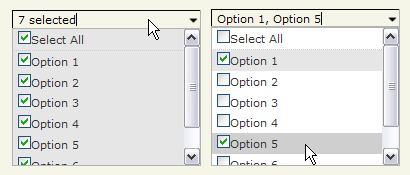 設置イメージ
<!DOCTYPE html>
<html lang="ja">
<head>
<meta charset="utf-8">
<title>設置サンプル</title>
<link rel="stylesheet" type="text/css" href="/content/lib/global.css" />
<!-- JS -->
<script src="https://ajax.googleapis.com/ajax/libs/jquery/1.3.2/jquery.min.js"></script>
<script type="text/javascript" src="/content/lib/jquery/jquery.dimensions-1.2.js"></script>
<script type="text/javascript" src="/content/lib/jquery/jqueryMultiSelect.js"></script>
<script type="text/javascript">
$(function() {
// Default options
$("#control_1, #control_3, #control_4, #control_5").multiSelect();
// With callback
$("#control_6").multiSelect( null, function(el) {
$("#callbackResult").show().fadeOut();
});
// Options displayed in comma-separated list
$("#control_7").multiSelect({ oneOrMoreSelected:'*' });
// 'Select All' text changed
$("#control_8").multiSelect({ selectAllText:'Pick ‘em all!' });
// Show test data
$("FORM").submit( function() {
var results = $(this).serialize().replace(/&/g, '\n');
results = decodeURI(results);
alert(results);
return false;
});
});
</script>
<!-- CSS -->
<link rel="stylesheet" type="text/css" href="/content/lib/jquery/jquery_multiselect/jqueryMultiSelect.css" />
</head>
<body>
<!-- CONTENT -->
<h1><a href='http://abeautifulsite.net/notebook.php?article=62'>jQuery MultiSelect</a></h1>
<!-- CODE -->
<form action="/content/demo/test.php" method="post">
<h2>コントロール1:デフォルト</h2>
<p>
<select id="control_1" name="control_1[]" multiple="multiple" size="5">
<option value=""></option>
<option value="option_1">Option 1</option>
<option value="option_2">Option 2</option>
<option value="option_3">Option 3</option>
<option value="option_4">Option 4</option>
<option value="option_5">Option 5</option>
</select>
</p>
<p>IE6だとこのSelect要素が上のSelect要素の上に重なってしまう。<br>
<select id="control_2" name="control_2[]">
<option value="option_1">IE6 TEST</option>
<option value="option_2">IE6 TEST</option>
<option value="option_3">IE6 TEST</option>
<option value="option_4">IE6 TEST</option>
<option value="option_5">IE6 TEST</option>
<option value="option_6">IE6 TEST</option>
<option value="option_7">IE6 TEST</option>
<option value="option_8">IE6 TEST</option>
<option value="option_9">IE6 TEST</option>
<option value="option_10">IE6 TEST</option>
</select>
</p>
<h2>コントロール3, 4, 5:初期値を選択</h2>
<p>
<select id="control_3" name="control_3[]" multiple="multiple" size="5">
<option value=""></option>
<option value="option_1" selected="selected">Option 1</option>
<option value="option_2">Option 2</option>
<option value="option_3">Option 3</option>
<option value="option_4">Option 4</option>
<option value="option_5">Option 5</option>
<option value="option_6">Option 6</option>
<option value="option_7">Option 7</option>
</select>
<select id="control_4" name="control_4[]" multiple="multiple" size="5">
<option value=""></option>
<option value="option_1" selected="selected">Option 1</option>
<option value="option_2" selected="selected">Option 2</option>
<option value="option_3">Option 3</option>
<option value="option_4">Option 4</option>
<option value="option_5">Option 5</option>
<option value="option_6">Option 6</option>
<option value="option_7">Option 7</option>
</select>
<select id="control_5" name="control_5[]" multiple="multiple" size="5">
<option value=""></option>
<option value="option_1" selected="selected">Option 1</option>
<option value="option_2" selected="selected">Option 2</option>
<option value="option_3" selected="selected">Option 3</option>
<option value="option_4">Option 4</option>
<option value="option_5">Option 5</option>
<option value="option_6">Option 6</option>
<option value="option_7">Option 7</option>
</select>
</p>
<h2>コントロール6:コールバック関数あり</h2>
<p>
<select id="control_6" name="control_6[]" multiple="multiple" size="5">
<option value=""></option>
<option value="option_1">Option 1</option>
<option value="option_2">Option 2</option>
<option value="option_3">Option 3</option>
<option value="option_4">Option 4</option>
<option value="option_5">Option 5</option>
<option value="option_6">Option 6</option>
<option value="option_7">Option 7</option>
</select>
<span id="callbackResult" style="display:none;">Callback triggered!</span>
</p>
<h2>コントロール7:選択された値のテキストをカンマ区切りで連結して表示</h2>
<p>
<select id="control_7" name="control_7[]" multiple="multiple" size="5">
<option value=""></option>
<option value="option_1">Option 1</option>
<option value="option_2">Option 2</option>
<option value="option_3">Option 3</option>
<option value="option_4">Option 4</option>
<option value="option_5">Option 5</option>
<option value="option_6">Option 6</option>
<option value="option_7">Option 7</option>
</select>
</p>
<h2>コントロール8:「Select All」のテキスト変更</h2>
<p>
<select id="control_8" name="control_8[]" multiple="multiple" size="5">
<option value=""></option>
<option value="option_1">Option 1</option>
<option value="option_2">Option 2</option>
<option value="option_3">Option 3</option>
<option value="option_4">Option 4</option>
<option value="option_5">Option 5</option>
<option value="option_6">Option 6</option>
<option value="option_7">Option 7</option>
</select>
</p>
<p>
<input type="submit" value="結果表示" />
</p>
</form>
<!-- / CODE -->
<!-- / CONTENT -->
</body>
</html>
jQuery plugin: Validation
完璧なフォームの入力チェック
2008/11/30
jQuery plugin: Validation
必須入力チェックから、氏名、メールアドレス、URLなどの整合性チェック、入力文字数制限など様々なフォームの入力チェックができるjQueryプラグイン。 入力エラーが合った場合は、入力欄からフォーカスが外れたときに、エラー内容に応じたメッセージが表示されるようになっています。
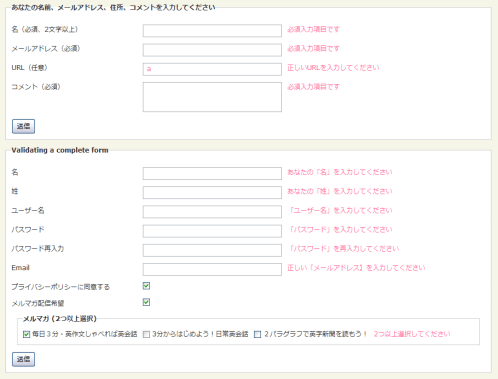 設置イメージ
<!DOCTYPE html PUBLIC "-//W3C//DTD XHTML 1.0 Transitional//EN" "http://www.w3.org/TR/xhtml1/DTD/xhtml1-transitional.dtd">
<html xmlns="http://www.w3.org/1999/xhtml" xml:lang="ja" lang="ja">
<head>
<meta http-equiv="Content-Type" content="text/html; charset=utf-8" />
<meta http-equiv="Content-Language" content="ja" />
<meta http-equiv="Content-Script-Type" content="text/javascript" />
<meta http-equiv="Content-Style-Type" content="text/css" />
<meta http-equiv="imagetoolbar" content="no" />
<title>jQuery plugin: Validation | 設置サンプル</title>
<link rel="stylesheet" href="/content/lib/global.css" type="text/css" />
<!-- JS -->
<script src="https://ajax.googleapis.com/ajax/libs/jquery/1.2.6/jquery.min.js"></script>
<script type="text/javascript" src="/content/lib/jquery/jquery.validate.js"></script>
<script type="text/javascript">
$.validator.setDefaults({
submitHandler: function() { alert("submitted!"); }
});
$().ready(function() {
// validate the comment form when it is submitted
$("#commentForm").validate();
// validate signup form on keyup and submit
$("#signupForm").validate({
rules: {
firstname: "required",
lastname: "required",
username: {
required: true,
minlength: 2
},
password: {
required: true,
minlength: 5
},
confirm_password: {
required: true,
minlength: 5,
equalTo: "#password"
},
email: {
required: true,
email: true
},
topic: {
required: "#newsletter:checked",
minlength: 2
},
agree: "required"
},
messages: {
firstname: "あなたの「名」を入力してください",
lastname: "あなたの「姓」を入力してください",
username: {
required: "「ユーザー名」を入力してください",
minlength: "「ユーザー名」は2文字以上で入力してください"
},
password: {
required: "「パスワード」を入力してください",
minlength: "「パスワード」は5文字以上で入力してください"
},
confirm_password: {
required: "「パスワード」を再入力してください",
minlength: "「パスワード」は5文字以上で入力してください",
equalTo: "パスワードが一致しません"
},
email: "正しい「メールアドレス】を入力してください",
agree: "プライバシーポリシーに同意してください"
}
});
// propose username by combining first- and lastname
$("#username").focus(function() {
var firstname = $("#firstname").val();
var lastname = $("#lastname").val();
if(firstname && lastname && !this.value) {
this.value = firstname + "." + lastname;
}
});
//code to hide topic selection, disable for demo
var newsletter = $("#newsletter");
// newsletter topics are optional, hide at first
var inital = newsletter.is(":checked");
var topics = $("#newsletter_topics")[inital ? "removeClass" : "addClass"]("gray");
var topicInputs = topics.find("input").attr("disabled", !inital);
// show when newsletter is checked
newsletter.click(function() {
topics[this.checked ? "removeClass" : "addClass"]("gray");
topicInputs.attr("disabled", !this.checked);
});
});
</script>
<!-- CSS -->
<style type="text/css">
form { width:80%; }
fieldset { margin:10px; padding:10px; }
p { clear:both; margin:0; padding:0; overflow:hidden; }
label { width:20em; float:left; display:block; }
fieldset#newsletter_topics label { display:inline; width:auto; margin-right:10px; }
textarea, input.txt { margin-right:10px; width:20em; float:left; }
.error { color:#ff6699; white-space:nowrap; display:inline; }
</style>
</head>
<body>
<div id="wrap">
<h1><a href='http://bassistance.de/jquery-plugins/jquery-plugin-validation/'>jQuery plugin: Validation</a> | 設置サンプル</h1>
<!-- CODE -->
<form id="commentForm" method="get" action="">
<fieldset>
<legend>あなたの名前、メールアドレス、住所、コメントを入力してください</legend>
<p>
<label for="cname">名(必須、2文字以上)</label>
<input id="cname" name="name" class="txt required" minlength="2" />
<p>
<label for="cemail">メールアドレス(必須)</label>
<input id="cemail" name="email" class="txt required email" />
</p>
<p>
<label for="curl">URL(任意)</label>
<input id="curl" name="url" class="txt url" value="" />
</p>
<p>
<label for="ccomment">コメント(必須)</label>
<textarea id="ccomment" name="comment" class="required"></textarea>
</p>
<p>
<input class="submit" type="submit" value=" 送信 "/>
</p>
</fieldset>
</form>
<form class="cmxform" id="signupForm" method="get" action="">
<fieldset>
<legend>Validating a complete form</legend>
<p>
<label for="firstname">名</label>
<input id="firstname" name="firstname" class="txt" />
</p>
<p>
<label for="lastname">姓</label>
<input id="lastname" name="lastname" class="txt" />
</p>
<p>
<label for="username">ユーザー名</label>
<input id="username" name="username" class="txt" />
</p>
<p>
<label for="password">パスワード</label>
<input id="password" name="password" type="password" class="txt" />
</p>
<p>
<label for="confirm_password">パスワード再入力</label>
<input id="confirm_password" name="confirm_password" type="password" class="txt" />
</p>
<p>
<label for="email">Email</label>
<input id="email" name="email" class="txt" />
</p>
<p>
<label for="agree">プライバシーポリシーに同意する</label>
<input type="checkbox" id="agree" name="agree" />
</p>
<p>
<label for="newsletter">メルマガ配信希望</label>
<input type="checkbox" id="newsletter" name="newsletter" />
</p>
<fieldset id="newsletter_topics">
<legend>メルマガ (2つ以上選択)</legend>
<label for="topic_marketflash">
<input type="checkbox" id="topic_marketflash" value="magazine1" name="topic" />
毎日3分・英作文しゃべれば英会話
</label>
<label for="topic_fuzz">
<input type="checkbox" id="topic_fuzz" value="magazine2" name="topic" />
3分からはじめよう!日常英会話
</label>
<label for="topic_digester">
<input type="checkbox" id="topic_digester" value="magazine3" name="topic" />
2パラグラフで英字新聞を読もう!
</label>
<label for="topic" class="error">2つ以上選択してください</label>
</fieldset>
<p>
<input class="submit" type="submit" value=" 送信 "/>
</p>
</fieldset>
</form>
<!-- / CODE -->
</div>
</body>
</html>
jquery.combobox
Select要素からコンボボックスを作成
2009/2/11
jquery.combobox
HTMLページにある既存のSelect要素からコンボボックスを作成するjQueryプラグイン。 ドロップダウンメニューをCSSで装飾することができます。背景とボタン部分には画像を使用しています。
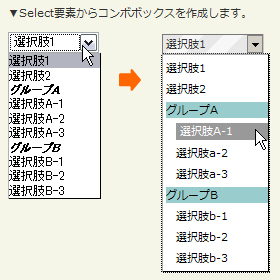 設置イメージ
<!DOCTYPE html PUBLIC "-//W3C//DTD XHTML 1.0 Transitional//EN" "http://www.w3.org/TR/xhtml1/DTD/xhtml1-transitional.dtd">
<html xmlns="http://www.w3.org/1999/xhtml" xml:lang="ja" lang="ja">
<head>
<meta http-equiv="Content-Type" content="text/html; charset=utf-8" />
<meta http-equiv="Content-Language" content="ja" />
<meta http-equiv="Content-Script-Type" content="text/javascript" />
<meta http-equiv="Content-Style-Type" content="text/css" />
<meta http-equiv="imagetoolbar" content="no" />
<title>jquery.combobox | 設置サンプル</title>
<link rel="stylesheet" href="/content/lib/global.css" type="text/css" />
<!-- JS -->
<script src="https://ajax.googleapis.com/ajax/libs/jquery/1.2.6/jquery.min.js"></script>
<script type="text/javascript" src="/content/lib/jquery/jquery.dimensions-1.2.js"></script>
<script type="text/javascript" src="/content/lib/jquery/jquery.combobox.js"></script>
<script type="text/javascript">
$(function() {
$('#officeItemList').combobox({
comboboxContainerClass: "comboboxContainer",
comboboxValueContainerClass: "comboboxValueContainer",
comboboxValueContentClass: "comboboxValueContent",
comboboxDropDownClass: "comboboxDropDownContainer",
comboboxDropDownButtonClass: "comboboxDropDownButton",
comboboxDropDownItemClass: "comboboxItem",
comboboxDropDownItemHoverClass: "comboboxItemHover",
comboboxDropDownGroupItemHeaderClass: "comboboxGroupItemHeader",
comboboxDropDownGroupItemContainerClass: "comboboxGroupItemContainer",
animationType: "slide",
width: "100px"
});
});
</script>
<!-- CSS -->
<style type="text/css">
.comboboxContainer { background-color:#fff; border:1px solid #777; border-right:solid 1px #ccc; border-bottom:solid 1px #ccc; }
.comboboxValueContainer { background:url("/content/img/skin/bg.png") repeat-x left top; }
.comboboxValueContent { padding-left:3px; text-transform:uppercase; }
.comboboxDropDownContainer { border:solid 1px #000; border-left:solid 1px #aaa; border-top:solid 1px #aaa; background:#fff; overflow:hidden; padding-left:3px; }
.comboboxDropDownButton { width:16px; height:18px; background-image:url("/content/img/ajax/image.axd.gif"); }
.comboboxGroupItemHeader { display:block; background:#99cccc; color:#000; }
.comboboxGroupItemContainer { padding-left:10px; }
.comboboxItem { background:#fff; color:#000; text-transform:lowercase; font-weight:normal; font-style:normal; }
.comboboxItemHover { background-color:#999; color:#fff; text-transform:uppercase; padding-left:4px; }
</style>
</head>
<body>
<div id="wrap">
<h1><a href='http://jquery.sanchezsalvador.com/jquery/page/jquerycomboboxexamplealternatestyle.aspx'>jquery.combobox</a> | 設置サンプル</h1>
<p>▼Select要素からコンボボックスを作成します。</p>
<!-- CODE -->
<form action="#" style="margin-bottom:400px;">
<p class="liveexample">
<select id="officeItemList">
<option value="1">選択肢1</option>
<option value="2">選択肢2</option>
<optgroup label="グループA">
<option value="a1">選択肢A-1</option>
<option value="a2">選択肢A-2</option>
<option value="a3">選択肢A-3</option>
</optgroup>
<optgroup label="グループB">
<option value="b1">選択肢B-1</option>
<option value="b2">選択肢B-2</option>
<option value="b3">選択肢B-3</option>
</optgroup>
</select>
</p>
</form>
<!-- / CODE -->
</div>
</body>
</html>
Maked Input Plugin
指定したフォーマットで入力制御
2008/11/30
Maked Input Plugin
テキスト入力欄に日付、電話番号、郵便番号など指定したフォーマットで入力させるように入力制御を行うjQueryプラグイン。
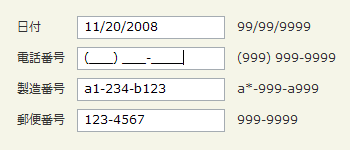 設置イメージ
<!DOCTYPE html PUBLIC "-//W3C//DTD XHTML 1.0 Transitional//EN" "http://www.w3.org/TR/xhtml1/DTD/xhtml1-transitional.dtd">
<html xmlns="http://www.w3.org/1999/xhtml" xml:lang="ja" lang="ja">
<head>
<meta http-equiv="Content-Type" content="text/html; charset=utf-8" />
<meta http-equiv="Content-Language" content="ja" />
<meta http-equiv="Content-Script-Type" content="text/javascript" />
<meta http-equiv="Content-Style-Type" content="text/css" />
<meta http-equiv="imagetoolbar" content="no" />
<title>Maked Input Plugin | 設置サンプル</title>
<link rel="stylesheet" href="/content/lib/global.css" type="text/css" />
<!-- JS -->
<script src="https://ajax.googleapis.com/ajax/libs/jquery/1.2.6/jquery.min.js"></script>
<script type="text/javascript" src="/content/lib/jquery/jquery.maskedinput-1.2.1.js"></script>
<script type="text/javascript">
jQuery.noConflict();(function($) {
$(function() {
/* 日付 */
$('#date').mask('99/99/9999');
/* 電話番号 */
$('#phone').mask('(999) 999-9999');
/* 製造番号 */
$("#product").mask("a*-999-a999",{placeholder:" ",completed:function(){alert("You typed the following: "+this.val());}});
/* 郵便番号 */
$("#zipcode").mask("999-9999");
});
})(jQuery);
</script>
<!-- CSS -->
<style type="text/css">input { width:15em; }</style>
</head>
<body>
<div id="wrap">
<h1><a href='http://digitalbush.com/projects/masked-input-plugin/'>Maked Input Plugin</a> | 設置サンプル</h1>
<!-- CODE -->
<table>
<tr><td>日付</td><td><input id="date" type="text" tabindex="1" /></td><td>99/99/9999</td></tr>
<tr><td>電話番号</td><td><input id="phone" type="text" tabindex="2" /></td><td>(999) 999-9999</td></tr>
<tr><td>製造番号</td><td><input id="product" type="text" tabindex="3" /></td><td>a*-999-a999</td></tr>
<tr><td>郵便番号</td><td><input id="zipcode" type="text" tabindex="4" /></td><td>999-9999</td></tr>
</table>
<!-- / CODE -->
</div>
</body>
</html>
Select box manipulation
プルダウンメニューの操作
2009/3/18
Select box manipulation
プルダウンメニューの操作を簡単に行えるjQueryプラグイン。
アイテムの追加・削除・昇順&降順ソートしたり、選択されている値を配列として取得したり、選択されている要素をjQueryオブジェクトとして取得するなど、プルダウンメニューの操作に便利な様々なメソッドが用意されています。 また、JSON形式のデータを読込んでアイテムを追加することもできます。
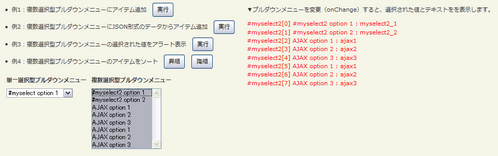 設置イメージ
<!DOCTYPE html PUBLIC "-//W3C//DTD XHTML 1.0 Transitional//EN" "http://www.w3.org/TR/xhtml1/DTD/xhtml1-transitional.dtd">
<html xmlns="http://www.w3.org/1999/xhtml" xml:lang="ja" lang="ja">
<head>
<meta http-equiv="Content-Type" content="text/html; charset=utf-8" />
<meta http-equiv="Content-Language" content="ja" />
<meta http-equiv="Content-Script-Type" content="text/javascript" />
<meta http-equiv="Content-Style-Type" content="text/css" />
<meta http-equiv="imagetoolbar" content="no" />
<title>Select box manipulation | 設置サンプル</title>
<link rel="stylesheet" href="/content/lib/global.css" type="text/css" />
<!-- JS -->
<script src="https://ajax.googleapis.com/ajax/libs/jquery/1.3.2/jquery.min.js"></script>
<script type="text/javascript" src="/content/lib/jquery/jquery.selectboxes.js"></script>
<script type="text/javascript">
$(function() {
/* 選択された値を取得して表示 */
$("#debug").hide();
$("select").change(function(){
$("#debug").show();
var s="";
$(this).find("option").each(function(i){
if($(this).attr("selected")){
s+="#"+$(this).parent().attr("id")+"["+i+"] "+this.text+" : "+this.value+"<br>";
}
});
$("#debug").html(s).css("color","red");
});
/* 例1:アイテム追加 */
$("#btn_addOption").click(function(){
var myOptions = {
"追加した値1" : "追加したテキスト1",
"追加した値2" : "追加したテキスト2",
"追加した値3" : "追加したテキスト3"
}
$("#myselect2").addOption(myOptions, false);
});
/* 例2:JSON形式のデータからアイテム追加 */
$("#btn_ajaxAddOption").click(function(){
$("#myselect2").ajaxAddOption("include/ajax/jquery_plugin_forminput/ajaxoptions.js");
});
/* 例3:選択された値をアラート表示 */
$("#btn_selectedValues").click(function(){
alert("現在選択されている値:"+$("#myselect2").selectedValues());
});
/* 例4:昇順ソート */
$("#btn_sortOptions_asc").click(function(){
$("#myselect2").sortOptions();
});
/* 例4:降順ソート */
$("#btn_sortOptions_desc").click(function(){
$("#myselect2").sortOptions(false);
});
});
</script>
</head>
<body>
<div id="wrap">
<h1><a href='http://www.texotela.co.uk/code/jquery/select/'>Select box manipulation</a> | 設置サンプル</h1>
<!-- CODE -->
<form action="#">
<ul>
<li>例1:複数選択型プルダウンメニューにアイテム追加 <input type="button" id="btn_addOption" value="実行" /></li>
<li>例2:複数選択型プルダウンメニューにJSON形式のデータからアイテム追加 <input type="button" id="btn_ajaxAddOption" value="実行" /></li>
<li>例3:複数選択型プルダウンメニューの選択された値をアラート表示 <input type="button" id="btn_selectedValues" value="実行" /></li>
<li>例4:複数選択型プルダウンメニューのアイテムをソート <input type="button" id="btn_sortOptions_asc" value="昇順" /> <input type="button" id="btn_sortOptions_desc" value="降順" /></li>
</ul>
<table>
<tr>
<th><label for="myselect1">単一選択型プルダウンメニュー</label></th>
<th><label for="myselect2">複数選択型プルダウンメニュー</label></th>
</tr>
<tr>
<td style="vertical-align:top">
<select name="myselect" id="myselect">
<option value="myselect_1">#myselect option 1</option>
<option value="myselect_2">#myselect option 2</option>
</select>
</td>
<td style="vertical-align:top">
<select multiple="multiple" name="myselect2" id="myselect2">
<option value="myselect2_1">#myselect2 option 1</option>
<option value="myselect2_2">#myselect2 option 2</option>
</select>
</td>
</tr>
</table>
<br>
<p>▼プルダウンメニューを変更(onChange)すると、選択された値とテキストをを表示します。</p>
<div id="debug"></div>
</form>
<!-- / CODE -->
</div>
</body>
</html>
shiftcheckbox
チェックボックスの範囲選択
2009/3/22
shiftcheckbox
チェックボックスの指定範囲を一気に選択できるjQueryプラグイン。
選択を開始するチェックボックスをクリックし、選択を終了するチェックボックスを[Shift]キーを押しながらクリックすることで、指定範囲のチェックボックスに一気に選択することができます。
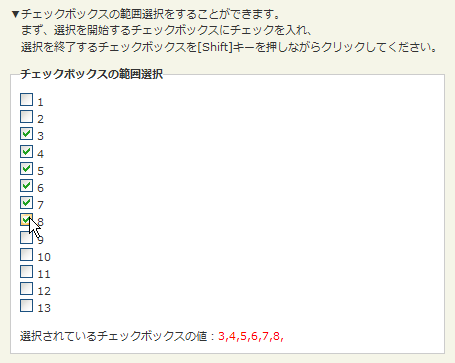 設置イメージ
<!DOCTYPE html PUBLIC "-//W3C//DTD XHTML 1.0 Transitional//EN" "http://www.w3.org/TR/xhtml1/DTD/xhtml1-transitional.dtd">
<html xmlns="http://www.w3.org/1999/xhtml" xml:lang="ja" lang="ja">
<head>
<meta http-equiv="Content-Type" content="text/html; charset=utf-8" />
<meta http-equiv="Content-Language" content="ja" />
<meta http-equiv="Content-Script-Type" content="text/javascript" />
<meta http-equiv="Content-Style-Type" content="text/css" />
<meta http-equiv="imagetoolbar" content="no" />
<title>shiftcheckbox | 設置サンプル</title>
<link rel="stylesheet" type="text/css" href="/content/lib/global.css" />
<!-- JS -->
<script src="https://ajax.googleapis.com/ajax/libs/jquery/1.2.6/jquery.min.js"></script>
<script type="text/javascript" src="/content/lib/jquery/jquery.shiftcheckbox.js"></script>
<script type="text/javascript">
$(function($){
$.shiftcheckbox.init('shiftCheckbox');
$("input[type='checkbox']").click(function(){
var res="";
$("input[type='checkbox']").each(function(i){
if($(this).attr("checked")){
res+=$(this).val()+",";
}
});
$("#res").html("<p>選択されているチェックボックスの値:<span style='color:red'>"+res+"</span>");
});
});
</script>
</head>
<body>
<div id="wrap">
<h1><a href='http://sanisoft-demo.com/jquery/plugins/shiftcheckbox/'>shiftcheckbox</a> | 設置サンプル</h1>
<p>▼チェックボックスの範囲選択をすることができます。<br> まず、選択を開始するチェックボックスにチェックを入れ、<br> 選択を終了するチェックボックスを[Shift]キーを押しながらクリックしてください。</p>
<!-- CODE -->
<form action="#">
<fieldset>
<legend>チェックボックスの範囲選択</legend>
<p>
<input type="checkbox" name="rating" value="1" class="input shiftCheckbox" /> 1<br>
<input type="checkbox" name="rating" value="2" class="input shiftCheckbox" /> 2<br>
<input type="checkbox" name="rating" value="3" class="input shiftCheckbox" /> 3<br>
<input type="checkbox" name="rating" value="4" class="input shiftCheckbox" /> 4<br>
<input type="checkbox" name="rating" value="5" class="input shiftCheckbox" /> 5<br>
<input type="checkbox" name="rating" value="6" class="input shiftCheckbox" /> 6<br>
<input type="checkbox" name="rating" value="7" class="input shiftCheckbox" /> 7<br>
<input type="checkbox" name="rating" value="8" class="input shiftCheckbox" /> 8<br>
<input type="checkbox" name="rating" value="9" class="input shiftCheckbox" /> 9<br>
<input type="checkbox" name="rating" value="10" class="input shiftCheckbox" /> 10<br>
<input type="checkbox" name="rating" value="11" class="input shiftCheckbox" /> 11<br>
<input type="checkbox" name="rating" value="12" class="input shiftCheckbox" /> 12<br>
<input type="checkbox" name="rating" value="13" class="input shiftCheckbox" /> 13
</p>
<p id="res"></p>
</fieldset>
</form>
<!-- / CODE -->
</div>
</body>
</html>
Simple chained combobox plugin for jQuery
動的に連動プルダウンを生成(PHPを使用してJSON形式のデータを自動生成)
2009/3/11
Simple chained combobox plugin for jQuery
[PHP]combobox.php(JSON形式でータを自動生成)
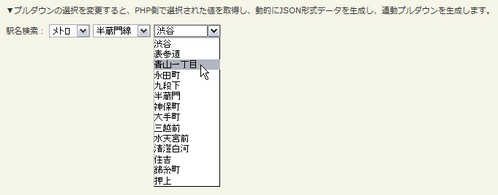
jQueryとPHPを使用した連動プルダウンを動的生成するjQueryプラグイン。
プルダウンの選択を変更すると、PHP側で選択された値を取得し、動的にJSON形式データを生成し、連動プルダウンを生成します。
phpnow coding ...
/content/demo/combobox.php
 設置イメージ
<!DOCTYPE html PUBLIC "-//W3C//DTD XHTML 1.0 Transitional//EN" "http://www.w3.org/TR/xhtml1/DTD/xhtml1-transitional.dtd">
<html xmlns="http://www.w3.org/1999/xhtml" xml:lang="ja" lang="ja">
<head>
<meta http-equiv="Content-Type" content="text/html; charset=utf-8" />
<meta http-equiv="Content-Language" content="ja" />
<meta http-equiv="Content-Script-Type" content="text/javascript" />
<meta http-equiv="Content-Style-Type" content="text/css" />
<meta http-equiv="imagetoolbar" content="no" />
<title>Simple chained combobox plugin for jQuery | 設置サンプル</title>
<link rel="stylesheet" href="/content/lib/global.css" type="text/css" />
<!-- JS -->
<script src="https://ajax.googleapis.com/ajax/libs/jquery/1.3.2/jquery.min.js"></script>
<script type="text/javascript" src="/content/lib/jquery/jquery.chainedSelects.js"></script>
<script type="text/javascript">
$(function(){
$('#train').chainSelect('#line','/content/demo/combobox.php',
{
//before request hide the target combobox and display the loading message
before:function(target){
$("#loading").css("display","block");
$(target).css("display","none");
},
//after request show the target combobox and hide the loading message
after:function(target){
$("#loading").css("display","none");
$(target).css("display","inline");
}
}
);
$('#line').chainSelect('#norikae','/content/demo/combobox.php',
{
before:function(target){
$("#loading").css("display","block");
$(target).css("display","none");
},
after:function(target){
$("#loading").css("display","none");
$(target).css("display","inline");
}
}
);
});
</script>
</head>
<body>
<div id="wrap">
<h1><a href='http://www.codeassembly.com/Simple-chained-combobox-plugin-for-jQuery/'>Simple chained combobox plugin for jQuery</a> | 設置サンプル</h1>
<p>▼プルダウンの選択を変更すると、PHP側で選択された値を取得し、動的にJSON形式データを生成し、連動プルダウンを生成します。</p>
<!-- CODE -->
<form name="formname" method="post" action="">
<!-- train combobox -->
<label for="train">駅名検索:</label>
<select id="train" name="train">
<option value="" selected="selected">---</option>
<option value="jr">JR</option>
<option value="metro">メトロ</option>
</select>
<select name="line" id="line" style="display:none"><!-- line combobox is chained by train combobox --></select>
<select name="norikae" id="norikae" style="display:none"><!-- norikae combobox is chained by line combobox --></select>
</form>
<!-- / CODE -->
</div>
</body>
</html>
TypeWatch
入力したテキストをアラート表示
2009/2/11
TypeWatch
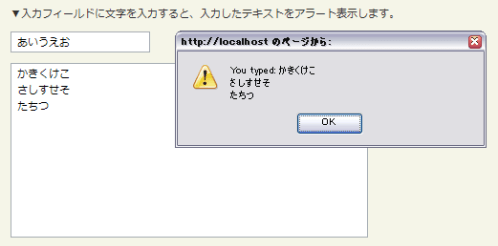
入力フィールドからフォーカスを外した時に、入力された文字列をアラーと表示するjQueryプラグイン。
 設置イメージ
<!DOCTYPE html PUBLIC "-//W3C//DTD XHTML 1.0 Transitional//EN" "http://www.w3.org/TR/xhtml1/DTD/xhtml1-transitional.dtd">
<html xmlns="http://www.w3.org/1999/xhtml" xml:lang="ja" lang="ja">
<head>
<meta http-equiv="Content-Type" content="text/html; charset=utf-8" />
<meta http-equiv="Content-Language" content="ja" />
<meta http-equiv="Content-Script-Type" content="text/javascript" />
<meta http-equiv="Content-Style-Type" content="text/css" />
<meta http-equiv="imagetoolbar" content="no" />
<title>TypeWatch | 設置サンプル</title>
<link rel="stylesheet" href="/content/lib/global.css" type="text/css" />
<!-- JS -->
<script src="https://ajax.googleapis.com/ajax/libs/jquery/1.2.6/jquery.min.js"></script>
<script type="text/javascript" src="/content/lib/jquery/typewatch.js"></script>
<script type="text/javascript">
$(function() {
$(".woot").typeWatch( { highlight:true, callback:finished } );
function finished(txt) {
alert('You typed: ' + txt);
}
});
</script>
<!-- CSS -->
<style type="text/css">
.counter { color:red; font-weight:bold; }
</style>
</head>
<body>
<div id="wrap">
<h1><a href='http://www.dennydotnet.com/post/TypeWatch-jQuery-Plugin.aspx'>TypeWatch</a> | 設置サンプル</h1>
<p>▼入力フィールドに文字を入力すると、入力したテキストをアラート表示します。</p>
<!-- CODE -->
<form action="#">
<p><input id="txtone" class="woot" type="text" value="文字を入力してください" /></p>
<p><textarea id="txttwo" class="woot" style="width: 360px; height: 175px">文字を入力してください</textarea></p>
</form>
<!-- / CODE -->
</div>
</body>
</html>
テキスト入力欄にヘルプテキストを表示するjQueryプラグインいろいろ
unknown
labelOver
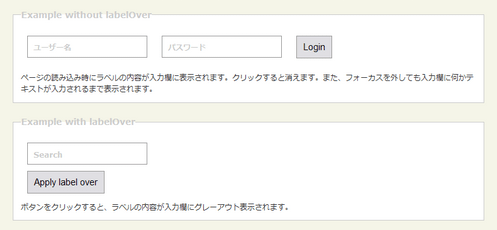
ラベル(label要素)の内容を入力欄(input要素)に表示するjQueryライブラリ。 検索フォームやログインフォームなど、表示エリアをなるべく省スペースですませたい時に便利です。
1つ目のサンプルでは、ページの読み込み時にラベル要素の内容が入力欄にグレーアウト表示されます。 入力欄をクリックすると消えます。また、入力欄からフォーカスを外しても入力欄に何もテキストが入力されていなければ消えません。 2つ目のサンプルは送信ボタンをクリックとラベルの内容が入力欄にグレーアウト表示されます。
 設置イメージ
<!DOCTYPE html PUBLIC "-//W3C//DTD XHTML 1.0 Transitional//EN" "http://www.w3.org/TR/xhtml1/DTD/xhtml1-transitional.dtd">
<html xmlns="http://www.w3.org/1999/xhtml" xml:lang="ja" lang="ja">
<head>
<meta http-equiv="Content-Type" content="text/html; charset=utf-8" />
<meta http-equiv="Content-Language" content="ja" />
<meta http-equiv="Content-Script-Type" content="text/javascript" />
<meta http-equiv="Content-Style-Type" content="text/css" />
<meta http-equiv="imagetoolbar" content="no" />
<title>labelOver | 設置サンプル</title>
<link rel="stylesheet" type="text/css" href="/content/lib/global.css" />
<!-- JS -->
<script src="https://ajax.googleapis.com/ajax/libs/jquery/1.2.6/jquery.min.js"></script>
<script type="text/javascript" src="/content/lib/jquery/jquery.label_over.js"></script>
<script type="text/javascript">
$(function() {
$('#frm').submit(function() {
$('legend', this).html('Example with labelOver');
return false;
})
$('#frm2').submit(function() {
$('legend', this).html('Example with labelOver');
$('label').labelOver('over');
return false;
})
$('#frm label.pre').labelOver('over');
});
</script>
<!-- CSS -->
<style type="text/css">
textarea { width:80%;}
fieldset { border:1px solid #ccc; padding:1em; margin:0 0 20px 0; }
legend { color:#ccc; font-size:120%; }
input, textarea { display:block; clear:left; font-family:Arial, verdana; font-size:125%; padding:7px; border:1px solid #999; margin:10px; }
div.label { position:relative; float:left; margin-right:3px; font-weight:bold; }
div.clear { clear:both; }
label.over { color:#ccc; position:absolute; top:20px; left:20px;}
</style>
</head>
<body>
<div id="wrap">
<h1><a href='http://remysharp.com/2007/03/19/a-few-more-jquery-plugins-crop-labelover-and-pluck/'>abelOver</a> | 設置サンプル</h1>
<!-- CODE -->
<form action="#" id="frm">
<fieldset>
<legend>Example without labelOver</legend>
<div class="label">
<label class="pre" for="username">ユーザー名</label>
<input type="text" name="username" value="" id="username" />
</div>
<div class="label">
<label class="pre" for="password">パスワード</label>
<input type="text" name="password" value="" id="password" />
</div>
<div style="float:left;">
<input type="submit" value="Login" />
</div>
<div class="clear"></div>
<p>ページの読み込み時にラベルの内容が入力欄に表示されます。クリックすると消えます。また、フォーカスを外しても入力欄に何かテキストが入力されるまで表示されます。</p>
</fieldset>
</form>
<form action="#" id="frm2">
<fieldset>
<legend>Example without labelOver</legend>
<div class="label">
<label for="search">Search</label>
<input type="text" name="search" value="" id="search" />
</div>
<input type="submit" name="submit" value="Apply label over" id="submit" />
<div class="clear"></div>
<p>ボタンをクリックすると、ラベルの内容が入力欄にグレーアウト表示されます。</p>
</fieldset>
</form>
<!-- / CODE -->
</div>
</body>
</html>
Overlabel
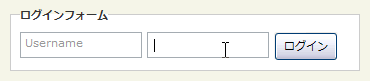
ラベル(label要素)の内容を入力欄(input要素)に表示するjQueryライブラリ。
ヒントテキストの表示・非表示はCSSで制御しています。 入力欄をクリックするとラベルを非表示にするスタイルを適用します。 入力欄からフォーカスを外した時に、入力欄にヒントテキスト以外の文字列が入力されている場合、空の場合は、再度ラベルが表示されます。
 設置イメージ
<!DOCTYPE html PUBLIC "-//W3C//DTD XHTML 1.0 Transitional//EN" "http://www.w3.org/TR/xhtml1/DTD/xhtml1-transitional.dtd">
<html xmlns="http://www.w3.org/1999/xhtml" xml:lang="ja" lang="ja">
<head>
<meta http-equiv="Content-Type" content="text/html; charset=utf-8" />
<meta http-equiv="Content-Language" content="ja" />
<meta http-equiv="Content-Script-Type" content="text/javascript" />
<meta http-equiv="Content-Style-Type" content="text/css" />
<meta http-equiv="imagetoolbar" content="no" />
<title>labelOver| 設置サンプル</title>
<link rel="stylesheet" type="text/css" href="/content/lib/global.css" />
<!-- JS -->
<script src="https://ajax.googleapis.com/ajax/libs/jquery/1.3.2/jquery.min.js"></script>
<script type="text/javascript" src="/content/lib/jquery/jquery.overlabel.js"></script>
<script type="text/javascript">
$(function(){
$("label.overlabel").overlabel();
});
</script>
<!-- CSS -->
<style type="text/css">
fieldset div { position:relative; float:left; margin:10px 5px 0 0; padding:0; }
input#username-field, input#password-field { width:10em; padding:5px; }
label.overlabel { color:#999; }
label.overlabel-apply { position:absolute; top:3px; left:5px; z-index:1; color:#999; }
</style>
</head>
<body>
<div id="wrap">
<h1 id='a_toggleformtext'><a href='http://grzegorz.frydrychowicz.net/jquery_toggleformtext/'>ToggleFormText plug-in</a> | 設置サンプル</h1>
<p>▼入力欄には、入力のヒントとなるテキストが表示されています。このヒントテキストは入力欄をクリックすると消えます。入力欄からフォーカスを外すと、入力欄が空の場合、ヒントテキスト以外のテキストが入力されていない場合、送信後は、再度ヒントテキストが表示されます。</p>
<!-- CODE -->
<form id="login" action="#" method="post">
<fieldset>
<legend>ログインフォーム</legend>
<div id="username">
<label for="username-field" class="overlabel">Username</label>
<input id="username-field" type="text" name="username" title="Username" value="" />
</div>
<div id="password" class="overlabel-wrapper">
<label for="password-field" class="overlabel">Password</label>
<input id="password-field" type="password" name="password" title="Password" value="" />
</div>
<div id="submit">
<input type="submit" name="submit" value="ログイン" />
</div>
</fieldset>
</form>
<!-- / CODE -->
</div>
</body>
</html>
jQuery tutorial: Text box hints
input要素のtitle属性のinput要素にヒントテキストとして表示するjQueryライブラリ。
入力欄には、入力のヒントとなるテキストが表示されます。 このヒントテキストは入力欄にフォーカスを当てると消え、入力欄からフォーカスを外すと、入力欄が空の場合またはヒントテキスト以外のテキストが入力されていない場合は、再度ヒントテキストが表示されます。
 設置イメージ
<!DOCTYPE html>
<html lang="ja">
<head>
<meta charset="utf-8">
<title>設置サンプル</title>
<link rel="stylesheet" type="text/css" href="/content/lib/global.css" />
<!-- JS -->
<script src="https://ajax.googleapis.com/ajax/libs/jquery/1.3.2/jquery.min.js"></script>
<script src="/content/lib/jquery/jquery.hint.js"></script>
<script>
$(function() {
// find all the input elements with title attributes
$('input[title!=""]').hint();
});
</script>
<!-- CSS -->
<style type="text/css">
input { padding:5px; border: 2px solid #666; }
input.blur { color: #999; }
</style>
</head>
<body>
<!-- CONTENT -->
<h1><a href='http://remysharp.com/2007/01/25/jquery-tutorial-text-box-hints/'>jQuery tutorial: Text box hints</a></h1>
<p>▼入力欄には、入力のヒントとなるテキストが表示されています。このヒントテキストは入力欄をクリックすると消えます。入力欄からフォーカスを外すと、入力欄が空の場合、ヒントテキスト以外のテキストが入力されていない場合は、再度ヒントテキストが表示されます。</p>
<!-- CODE -->
<form action="/content/demo/test.php" method="post">
<div><label for="search">Search:</label>
<input type="text" name="seach" value="" id="search" title="by name or ticker" />
<input type="submit" value="Go" />
</div>
</form>
<!-- / CODE -->
<!-- / CONTENT -->
</body>
</html>
Watermark Input Plugin
入力欄(input要素)に、入力する内容のヒントテキストを透かし表示するjQueryライブラリ。 検索フォームやログインフォームなど、表示エリアをなるべく省スペースですませたい時に便利です。
入力欄には、入力のヒントとなるテキストが表示されています。 このヒントテキストは入力欄をクリックすると消えます。 入力欄からフォーカスを外すと、入力欄が空の場合、またはヒントテキスト以外のテキストが入力されていない場合は、再度ヒントテキストが透かし表示されます。
オプションの第2パラメータに、透かし表示する文字列の色を指定することができます。
 設置イメージ
<!DOCTYPE html PUBLIC "-//W3C//DTD XHTML 1.0 Transitional//EN" "http://www.w3.org/TR/xhtml1/DTD/xhtml1-transitional.dtd">
<html xmlns="http://www.w3.org/1999/xhtml" xml:lang="ja" lang="ja">
<head>
<meta http-equiv="Content-Type" content="text/html; charset=utf-8" />
<meta http-equiv="Content-Language" content="ja" />
<meta http-equiv="Content-Script-Type" content="text/javascript" />
<meta http-equiv="Content-Style-Type" content="text/css" />
<meta http-equiv="imagetoolbar" content="no" />
<title>Watermark Input Plugin | 設置サンプル</title>
<link rel="stylesheet" type="text/css" href="/content/lib/global.css" />
<!-- JS -->
<script src="https://ajax.googleapis.com/ajax/libs/jquery/1.3.2/jquery.min.js"></script>
<script type="text/javascript" src="/content/lib/jquery/jquery.watermarkinput.js"></script>
<script type="text/javascript">
$(function($){
$("#username").Watermark("ユーザー名","#999");
$("#password").Watermark("パスワード","#999");
$("#email").Watermark("example@example.co.jp","#999");
});
</script>
<!-- CSS -->
<link rel="stylesheet" type="text/css" href="/content/lib/jquery/jquery.jqpuzzle.css" />
<style type="text/css">
input#username, input#password { width:10em; }
input#email { width:15em; }
</style>
</head>
<body>
<div id="wrap">
<h1 id='a_watermaerk_input_plugn'><a href='http://digitalbush.com/projects/watermark-input-plugin/'>Watermark Input Plugin</a> | 設置サンプル</h1>
<p>▼入力欄には、入力のヒントとなるテキストが表示されています。このヒントテキストは入力欄をクリックすると消えます。入力欄からフォーカスを外すと、入力欄が空の場合、ヒントテキスト以外のテキストが入力されていない場合は、再度ヒントテキストが透かし表示されます。</p>
<!-- CODE -->
<form action="#">
<fieldset>
<legend>ユーザー登録</legend>
<p>
<label for="username">ユーザー名</label>
<input type="text" id="username" name="username" />
<label for="password">パスワード</label>
<input type="password" id="password" name="password" />
<label for="email">E-mail</label>
<input type="text" id="email" name="email" />
</p>
<p>
<input type="button" onclick="$.Watermark.HideAll()" value="すべてクリア" />
<input type="button" onclick="$.Watermark.ShowAll()" value="すべて表示" />
</p>
</fieldset>
</form>
<!-- / CODE -->
</div>
</body>
</html>
ToggleFormText plug-in
jQueryを使用して、入力欄(input要素、textarea要素)に、入力する内容のヒントテキストを表示する方法が掲載されています。
このヒントテキストは入力欄をクリックすると消えます。入力欄からフォーカスを外すと、入力欄が空の場合、ヒントテキスト以外のテキストが入力されていない場合、送信後は、再度ヒントテキストが表示されます。
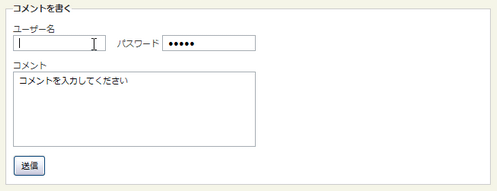 設置イメージ
<!DOCTYPE html PUBLIC "-//W3C//DTD XHTML 1.0 Transitional//EN" "http://www.w3.org/TR/xhtml1/DTD/xhtml1-transitional.dtd">
<html xmlns="http://www.w3.org/1999/xhtml" xml:lang="ja" lang="ja">
<head>
<meta http-equiv="Content-Type" content="text/html; charset=utf-8" />
<meta http-equiv="Content-Language" content="ja" />
<meta http-equiv="Content-Script-Type" content="text/javascript" />
<meta http-equiv="Content-Style-Type" content="text/css" />
<meta http-equiv="imagetoolbar" content="no" />
<title>ToggleFormText plug-in | 設置サンプル</title>
<link rel="stylesheet" type="text/css" href="/content/lib/global.css" />
<!-- JS -->
<script src="https://ajax.googleapis.com/ajax/libs/jquery/1.3.2/jquery.min.js"></script>
<script type="text/javascript" src="/content/lib/jquery/jquery.toggleformtext.js"></script>
<!-- CSS -->
<style type="text/css">
input#username,
input#password { width:10em; }
textarea#comment { width:28em; height:100px; }
</style>
</head>
<body>
<div id="wrap">
<h1 id='a_toggleformtext'><a href='http://grzegorz.frydrychowicz.net/jquery_toggleformtext/'>ToggleFormText plug-in</a> | 設置サンプル</h1>
<p>▼入力欄には、入力のヒントとなるテキストが表示されています。このヒントテキストは入力欄をクリックすると消えます。入力欄からフォーカスを外すと、入力欄が空の場合、ヒントテキスト以外のテキストが入力されていない場合、送信後は、再度ヒントテキストが表示されます。</p>
<!-- CODE -->
<form action="#" method="get">
<input type="hidden" name="f" value="include/ajax/jquery_plugin_forminput/toggleformtext.inc" />
<input type="hidden" name="ttl" value="ToggleFormText+plug-in%82%CC%90%DD%92u%83T%83%93%83v%83%8B" />
<fieldset>
<legend>コメントを書く</legend>
<p>
<label for="password">ユーザー名</label><br>
<input id="username" name="username" type="text" title="guest" />
<label for="password">パスワード</label>
<input id="password" name="password" type="password" title="guest" />
</p>
<p>
<label for="comment">コメント</label><br>
<textarea id="comment" name="comment" title="コメントを入力してください"></textarea>
</p>
<p>
<input name="Submit" type="submit" value="送信" />
</p>
</fieldset>
</form>
<!-- / CODE -->
</div>
</body>
</html>
Default Value
input要素とテキスト入力フィールドに初期値を表示するjQueryプラグイン。
入力フィールドにフォーカスを当てると初期値が消え、フォーカスを外した時に他の値が入力されていなかった場合はまた初期値が表示されます。
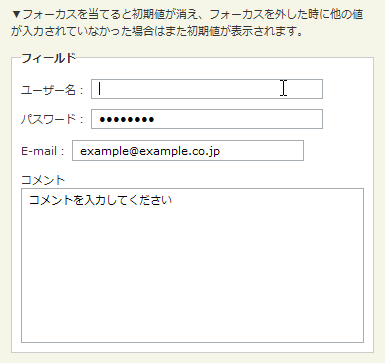 設置イメージ
<!DOCTYPE html PUBLIC "-//W3C//DTD XHTML 1.0 Transitional//EN" "http://www.w3.org/TR/xhtml1/DTD/xhtml1-transitional.dtd">
<html xmlns="http://www.w3.org/1999/xhtml" xml:lang="ja" lang="ja">
<head>
<meta http-equiv="Content-Type" content="text/html; charset=utf-8" />
<meta http-equiv="Content-Language" content="ja" />
<meta http-equiv="Content-Script-Type" content="text/javascript" />
<meta http-equiv="Content-Style-Type" content="text/css" />
<meta http-equiv="imagetoolbar" content="no" />
<title>Default Value| 設置サンプル</title>
<link rel="stylesheet" type="text/css" href="/content/lib/global.css" />
<!-- JS -->
<script src="https://ajax.googleapis.com/ajax/libs/jquery/1.3.2/jquery.min.js"></script>
<script type="text/javascript" src="/content/lib/jquery/jquery.defaultvalue.js"></script>
<script type="text/javascript">
$(function(){
$("#username").defaultvalue("ユーザー名を入力してください");
$("#password, #email, #comment").defaultvalue(
"秘密のパスワード",
"example@example.co.jp",
"コメントを入力してください"
);
});
</script>
<!-- CSS -->
<style type="text/css">
input { width:20em; }
input#btn_submit { width:6em; }
</style>
</head>
<body>
<div id="wrap">
<h4><a href='http://www.campbellsdigitalsoup.co.uk/about/default-value/'>Default Value</a></h4>
<p>▼入力フィールドにフォーカスを当てると初期値が消え、フォーカスを外した時に他の値が入力されていなかった場合はまた初期値が表示されます。 </p>
<!-- CODE -->
<form action="#" onsubmit="return false;">
<fieldset>
<legend>コメント投稿フォーム</legend>
<p>
<label for="username">ユーザー名:</label>
<input type="text" id="username" name="username" />
</p>
<p>
<label for="password">パスワード:</label>
<input type="password" id="password" name="password" />
</p>
<p>
<label for="email">E-mail:</label>
<input type="text" id="email" name="email" />
</p>
<p>
<label for="comment">コメント</label><br>
<textarea id="comment" name="comment" cols="50" rows="10"></textarea>
</p>
<p>
<input type="submit" id="btn_submit" name="btn_submit" value="送信する" />
</p>
</fieldset>
</form>
<!-- / CODE -->
</div>
</body>
</html>
テキスト入力欄の入力文字数制限
unknown
- Maxlength Plugin
テキスト入力欄・テキストエリアの単語数および文字数制限 - Text limiter for form fields
テキストエリアの入力文字数制限とあと何文字入力可能かリアルタイムに表示
Maxlength Plugin
テキスト入力欄(input type="text")およびテキストエリアに入力できる単語数および文字数を制限するjQueryプラグイン。 日本語も使えます。単語数は空白を調べて単語とみなしています。 テキストエリアの改行も1文字分としてカウントされます。
パラメータ'feedback'には、現在入力されている数を表示する要素のクラス名を指定します。 文字数および単語数は、input要素・textarea要素のmaxlength属性に指定します。 textarea要素に、文法上maxlength属性はないのでHTMLをValidにしたいときはhidden要素で代用できる仕組みになっています。 その場合は、パラメータ'useInput'にTRUEを指定してください。
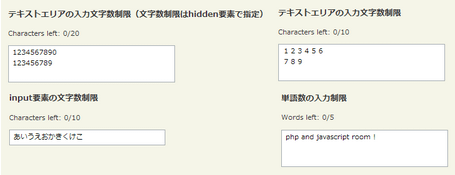 設置イメージ
<!DOCTYPE html PUBLIC "-//W3C//DTD XHTML 1.0 Transitional//EN" "http://www.w3.org/TR/xhtml1/DTD/xhtml1-transitional.dtd">
<html xmlns="http://www.w3.org/1999/xhtml" xml:lang="ja" lang="ja">
<head>
<meta http-equiv="Content-Type" content="text/html; charset=utf-8" />
<meta http-equiv="Content-Language" content="ja" />
<meta http-equiv="Content-Script-Type" content="text/javascript" />
<meta http-equiv="Content-Style-Type" content="text/css" />
<meta http-equiv="imagetoolbar" content="no" />
<title>Maxlength Plugin | 設置サンプル</title>
<link rel="stylesheet" href="/content/lib/global.css" type="text/css" />
<!-- JS -->
<script src="https://ajax.googleapis.com/ajax/libs/jquery/1.2.6/jquery.min.js"></script>
<script type="text/javascript" src="/content/lib/jquery/jquery.maxlength.js"></script>
<script type="text/javascript">
$(function() {
/* テキストエリア要素の文字数制限(文字数制限はhidden要素で指定) */
$('textarea.limited2').maxlength({
'feedback' : '.charsLeft',
'useInput': true
});
/* テキストエリアの入力文字数制限 */
$('textarea.limited').maxlength({
'feedback' : '.charsLeft'
});
/* input要素の文字数制限 */
$('input.limited').maxlength({
'feedback' : '.charsLeft'
});
/* 単語数の入力制限 */
$('textarea.wordLimited').maxlength({
'words': true,
'feedback': '.charsLeft'
});
});
</script>
</head>
<body>
<div id="wrap">
<h1><a href='http://remysharp.com/2008/06/30/maxlength-plugin/'>Maxlength Plugin</a> | 設置サンプル</h1>
<p>▼入力フィールドに文字を入力すると、入力したテキストをアラート表示します。</p>
<!-- CODE -->
<h2>テキストエリアの入力文字数制限(文字数制限はhidden要素で指定)</h2>
<form action="#">
<p>Characters left: <span class="charsLeft"></span>/20</p>
<textarea class="limited2"></textarea>
<input type="hidden" name="maxlength" value="20" />
</form>
<h2>テキストエリアの入力文字数制限</h2>
<form action="#">
<p>Characters left: <span class="charsLeft"></span>/10</p>
<textarea maxlength="10" class="limited"></textarea>
</form>
<h2>input要素の文字数制限</h2>
<form action="#">
<p>Characters left: <span class="charsLeft"></span>/10</p>
<input maxlength="10" class="limited" />
</form>
<h2>単語数の入力制限</h2>
<form action="#">
<p>Words left: <span class="charsLeft"></span>/5</p>
<textarea maxlength="5" class="wordLimited"></textarea>
</form>
<!-- / CODE -->
</div>
</body>
</html>
Text limiter for form fields
テキストエリアの入力文字数制限を行い、あと何文字入力可能かをリアルタイムに表示するjQueryプラグイン。
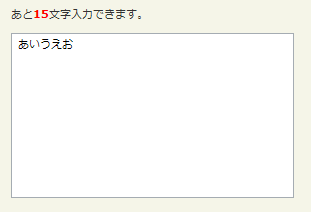 設置イメージ
<!DOCTYPE html PUBLIC "-//W3C//DTD XHTML 1.0 Transitional//EN" "http://www.w3.org/TR/xhtml1/DTD/xhtml1-transitional.dtd">
<html xmlns="http://www.w3.org/1999/xhtml" xml:lang="ja" lang="ja">
<head>
<meta http-equiv="Content-Type" content="text/html; charset=utf-8" />
<meta http-equiv="Content-Language" content="ja" />
<meta http-equiv="Content-Script-Type" content="text/javascript" />
<meta http-equiv="Content-Style-Type" content="text/css" />
<meta http-equiv="imagetoolbar" content="no" />
<title>Text limiter for form fieldsp| 設置サンプル</title>
<link rel="stylesheet" href="/content/lib/global.css" type="text/css" />
<!-- JS -->
<script src="https://ajax.googleapis.com/ajax/libs/jquery/1.2.6/jquery.min.js"></script>
<script type="text/javascript" src="/content/lib/jquery/textlimit.js"></script>
<script type="text/javascript">
$(function() {
$("textarea").textlimit('span.counter',20);
});
</script>
<!-- CSS -->
<style type="text/css">
.counter { color:red; font-weight:bold; }
</style>
</head>
<body>
<div id="wrap">
<h1><a href='http://www.dyve.net/jquery/?autohelp'>autohelp</a> | 設置サンプル</h1>
<!-- CODE -->
<form action="#">
<p>あと<span class="counter">0</span>文字入力できます。</p>
<p><textarea cols="40" rows="10"></textarea></p>
</form>
<!-- / CODE -->
</div>
</body>
</html>
入力に応じてテキストエリアを自動リサイズ
unknown
Auto-Growing Textarea
入力したテキスト量に応じて、テキストエリアの高さを自動リサイズするjQueryプラグイン。
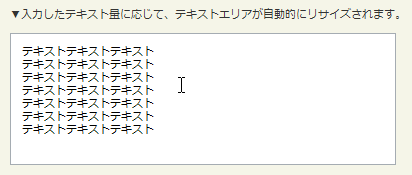 設置イメージ
<!DOCTYPE html PUBLIC "-//W3C//DTD XHTML 1.0 Transitional//EN" "http://www.w3.org/TR/xhtml1/DTD/xhtml1-transitional.dtd">
<html xmlns="http://www.w3.org/1999/xhtml" xml:lang="ja" lang="ja">
<head>
<meta http-equiv="Content-Type" content="text/html; charset=utf-8" />
<meta http-equiv="Content-Language" content="ja" />
<meta http-equiv="Content-Script-Type" content="text/javascript" />
<meta http-equiv="Content-Style-Type" content="text/css" />
<meta http-equiv="imagetoolbar" content="no" />
<title>Auto-Growing Textarea | 設置サンプル</title>
<link rel="stylesheet" type="text/css" href="/content/lib/global.css" />
<!-- JS -->
<script src="https://ajax.googleapis.com/ajax/libs/jquery/1.3.2/jquery.min.js"></script>
<script type="text/javascript" src="/content/lib/jquery/jquery.autogrow-textarea.js"></script>
<script type="text/javascript">
$(function(){
$('textarea').autogrow();
});
</script>
<!-- CSS -->
<style type="text/css">
textarea { line-height:1.2; width:400px; padding:10px; }
</style>
</head>
<body>
<div id="wrap">
<h1><a href='http://github.com/jaz303/jquery-grab-bag/blob/f1a3cc1e86cbb248bcb41391d6eff115b1be6d89/javascripts/jquery.autogrow-textarea.js'>Auto-Growing Textarea</a> | 設置サンプル</h1>
<p>▼入力したテキスト量に応じて、テキストエリアが自動的にリサイズされます。</p>
<!-- CODE -->
<textarea rows="6"></textarea>
<!-- / CODE -->
</div>
</body>
</html>
autoResize
入力したテキスト量に応じて、テキストエリアの高さを自動リサイズするjQueryプラグイン。 リサイズ時のアニメーションが滑らかです。
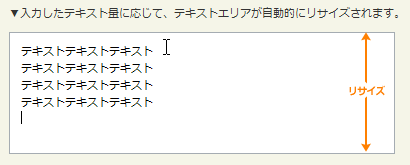 設置イメージ
<!DOCTYPE html PUBLIC "-//W3C//DTD XHTML 1.0 Transitional//EN" "http://www.w3.org/TR/xhtml1/DTD/xhtml1-transitional.dtd">
<html xmlns="http://www.w3.org/1999/xhtml" xml:lang="ja" lang="ja">
<head>
<meta http-equiv="Content-Type" content="text/html; charset=utf-8" />
<meta http-equiv="Content-Language" content="ja" />
<meta http-equiv="Content-Script-Type" content="text/javascript" />
<meta http-equiv="Content-Style-Type" content="text/css" />
<meta http-equiv="imagetoolbar" content="no" />
<title>jQuery plugin:‘autoResize’ | 設置サンプル</title>
<link rel="stylesheet" type="text/css" href="/content/lib/global.css" />
<!-- JS -->
<script src="https://ajax.googleapis.com/ajax/libs/jquery/1.3.2/jquery.min.js"></script>
<script type="text/javascript" src="/content/lib/jquery/autoresize.jquery.js"></script>
<script type="text/javascript">
$(function(){
$('textarea#comment').autoResize({
// On resize:
onResize : function() {
$(this).css({opacity:0.8});
},
// After resize:
animateCallback:function() {
$(this).css({opacity:1});
},
// Quite slow animation:
animateDuration:300,
// More extra space:
extraSpace:40
});
});
</script>
<!-- CSS -->
<style type="text/css">
textarea { width:400px; height:50px; padding:10px; display:block; }
</style>
</head>
<body>
<div id="wrap">
<h1><a href='http://james.padolsey.com/javascript/jquery-plugin-autoresize/'>jQuery plugin:‘autoResize’</a> | 設置サンプル</h1>
<p>▼入力したテキスト量に応じて、テキストエリアが自動的にリサイズされます。</p>
<!-- CODE -->
<textarea id="comment">Type something in here, when you get close to the end the box will expand!</textarea>
<!-- / CODE -->
</div>
</body>
</html>